Tiny IPTV
How to watch IPTV on Apple TV
October 3, 2026 · 6 min read
Apple TV doesn't come with an IPTV player. To watch the live channels from your subscription you need two things: the playlist details your provider gave you, and an app that can play them.
This guide sets everything up with Tiny IPTV, the player we make. Most IPTV apps on Apple TV ask for the same details, so the first two steps apply whichever one you use.
What you need
- An Apple TV on tvOS 26. Tiny IPTV needs it. To check your version, open Settings, then General, then About.
- An IPTV subscription. The provider sends you an M3U link, an Xtream Codes login, or both.
- A player app. The TV app that comes with Apple TV can't open IPTV playlists.
The player and the channels come from different places. Tiny IPTV doesn't sell channels, and your provider doesn't make the app. IPTV is just a way of delivering TV over the internet. Some providers are licensed and some aren't, so before you pay one, check that it has the rights to what it streams.
Step 1: Find your playlist details
Providers usually send these by email after you sign up, or show them in an account dashboard. You're looking for one of two things.
An M3U link
A web address that often ends in .m3u or .m3u8. Some look like this instead:
http://example.com:8080/get.php?username=jane&password=abc123&type=m3u_plusThat second kind comes from an Xtream Codes server, and it has your login built into it. More on that below.
An Xtream Codes login
Three things: a server address (often with a port number, like http://example.com:8080), a username and a password. Providers sometimes call this an "XC login" or "Xtream API".
If you have both, use the Xtream Codes login. Categories come in your provider's order, the TV guide sets itself up, and you can see when your subscription expires. M3U vs Xtream Codes goes through the differences.
Step 2: Install the app
On your Apple TV, open the App Store and search for Tiny IPTV. You can also open it on the App Store from your phone or computer and download it there.
Step 3: Add your playlist
- Open Tiny IPTV and go to Settings, then Add Playlist.
- Choose M3U Link or Xtream Codes at the top.
- Enter the link, or the server, username and password. Giving the playlist a name is optional.
- Choose Add Playlist. Big playlists can take a few seconds to load.
Playlist links are long, and typing one with the Siri Remote is slow going. When the keyboard comes up on the TV, your iPhone shows a notification that lets you type, or paste, on the phone instead.
If you paste a get.php link, Tiny IPTV recognizes it as an Xtream Codes link and offers to sign in to the account instead. Say yes. It fills in the server, username and password for you.
Step 4: Find your way around
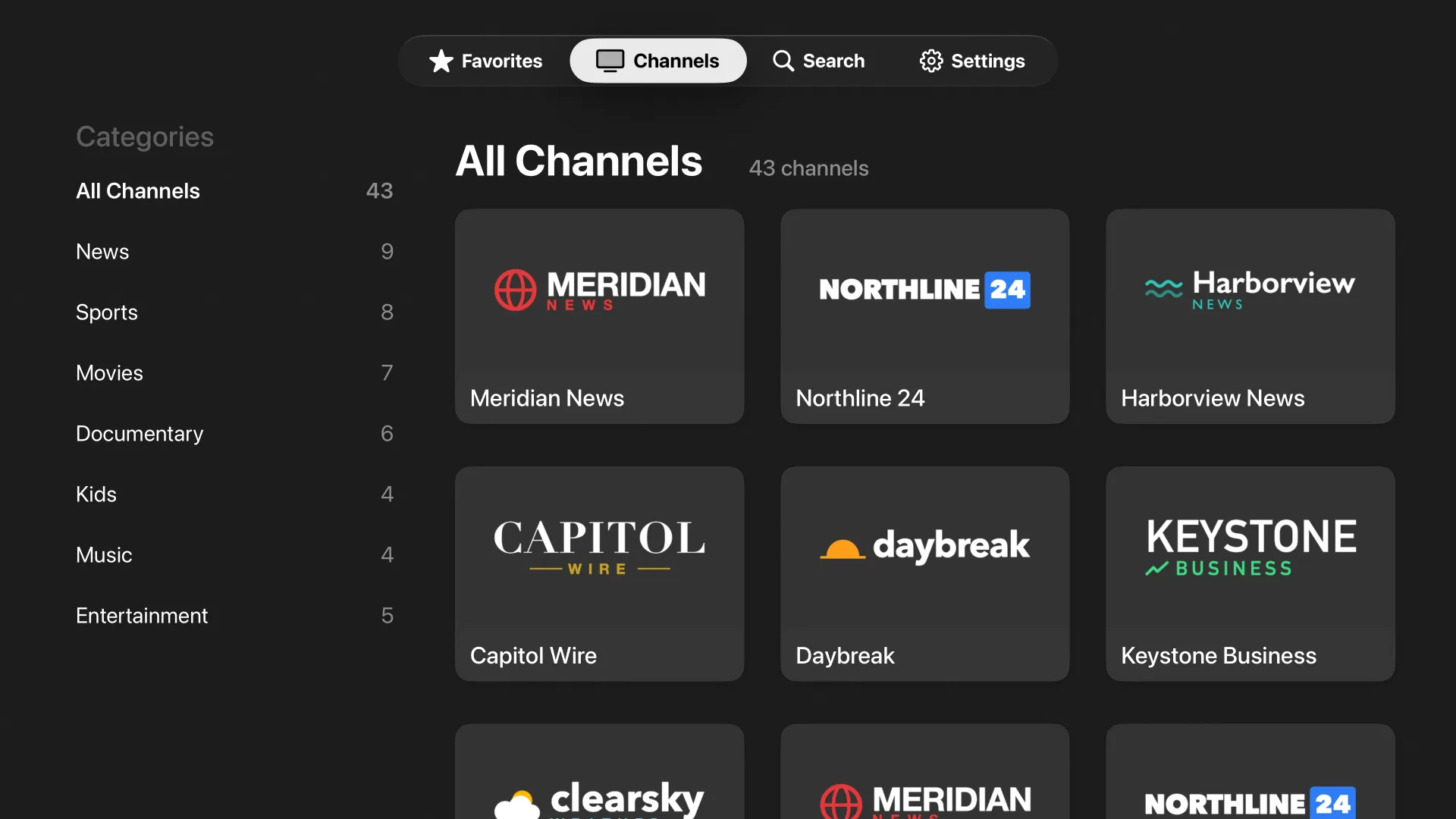
Channels are grouped by the categories in your playlist, with a count next to each. Select a channel to start watching.
Most playlists have far more channels than anyone watches, and a few habits make a big list manageable:
- Favorites. Press and hold a channel and choose Add to Favorites. Once you have some, the app opens straight to them.
- Hide what you don't watch. Press and hold a channel or a category and choose Hide. Settings keeps a list of everything you've hidden if you want any of it back.
- Search. It looks through every playlist you've added at once.
While a channel is playing, swipe down on the remote to bring up a row of other channels. It shows whatever you were browsing, so if you started from Sports, you get sports.
Step 5: Turn on the TV guide
The guide is off by default. Go to Settings and turn on TV Guide. Each channel then shows what's on now, and the player shows the full schedule.
With an Xtream Codes login, the listings come from your provider and there's nothing else to set up. Many M3U playlists name their own guide in the first line of the file, and Tiny IPTV uses it automatically. If yours doesn't, or some channels come up empty, you can add a guide link by hand. How to add a TV guide explains how.
If something doesn't play
The streams come straight from your provider. When a single channel won't play, the problem is usually at their end: the channel is down, or it isn't available in your country. When nothing plays, check that your subscription is still active. On an Xtream Codes account, the playlist's page in Settings shows the account status and expiry date.
For buffering, freezing and channels that fail to start, see IPTV not working on Apple TV.

Tiny IPTV for Apple TV
Plays the M3U playlist or Xtream Codes account from your IPTV provider.